Remote-work setup checklist
A remote-work setup is not a single purchase or a one-time configuration.
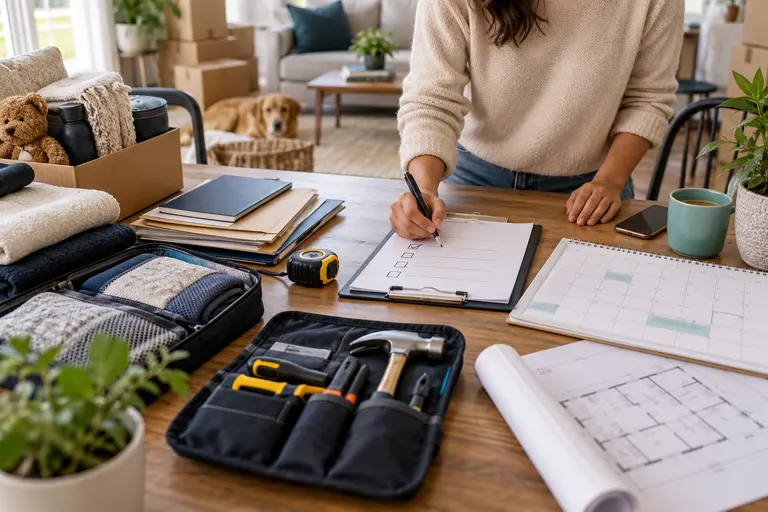
A remote-work setup is not a single purchase or a one-time configuration. It is a small system of decisions about where you work, what you connect with, how you protect data, and what you do when something fails. Remote work is a bundle of smaller systems that only fail when you set them up in the wrong order. This checklist separates the setup into named areas. Work through them in sequence, because each section depends on the one before it: you cannot secure data you have not backed up, and you cannot test connectivity on equipment you have not chosen.
Workspace
Your workspace is the physical and digital ground for everything else. The goal is a defined zone where you can work without interruption and without damaging your body or your employer’s data.
Choosing and defining your work area
- Dedicated work area. Choose a spot separate from your sleeping area if possible. Separation of work and living space improves focus and makes it easier to stop work when the day ends. If you share a home, agree on boundaries with household members before you start. The UK Chartered Institute of Personnel and Development (CIPD) notes that a dedicated space helps separate work and rest, but the exact arrangement depends on your home layout.
- Secondary workspace. Identify a fallback spot with power and internet. If your primary desk fails because of a power outage, renovation or family need, you need a place to continue working. This is a risk-management step aligned with ISO 31000’s risk identification principle (ISO 31000:2018, Risk management, Guidelines).
- Lighting and noise control. Position your screen to reduce glare and use a chair that supports your lower back. The US Occupational Safety and Health Administration (OSHA) publishes computer workstation ergonomics guidance; check the current version before buying a chair or desk. (OSHA, updated 2023)
- Wi-Fi signal test. Test your Wi-Fi signal from the exact spot you will sit, not from the router. Do this before you need it, and repeat it when you change rooms or furniture.
Ergonomic desk setup
- Screen at arm’s length, top of the monitor at or slightly below eye level, keyboard at elbow height, feet flat on the floor. OSHA’s computer workstation checklist provides the reference posture. Do not rely on a single “perfect” chair; adjust your chair, desk and screen height first.
- These are general ergonomic guidelines, not medical advice; for persistent pain, see a qualified health professional.
Equipment, cables and power
- Peripheral and cable plan. List every device you use daily: laptop, monitor, keyboard, mouse, headset, webcam, charger, adapters and cables. Label cables, and keep one spare charger and one spare cable set in a labelled pouch. This prevents the most common remote-work failure: a missing adapter at a client site or a dead battery before a call.
- Power plan. List every device that needs charging and where its charger lives. Add a power bank for laptops and phones. If you rely on a desktop computer or router, confirm whether a UPS (uninterruptible power supply) is needed to survive brief outages without data loss.
Internet and connectivity
- Identify the primary connection (home broadband, mobile hotspot, tethering) and one backup. Test the backup at least once per month.
- If your work requires a fixed IP address or a VPN, confirm your provider supports it.
- For video calls, check that your internet upload speed meets the minimum required by the platform you use; these figures change, so verify on the service provider’s official support page at the time of setup.
Security and communication norms
- Security baseline. Use a password manager, enable two-factor authentication on work accounts, and keep the operating system and antivirus updated. For any work device, confirm the employer’s security policy before installing software.
- Communication norms. Define response-time expectations with your team: email, chat and phone. State your working hours in your calendar and team channel. Document who to call when your internet drops.
Backup, data and emergency readiness
- Backup and data plan. Use the 3-2-1 rule: three copies of important files, two different media types, one offsite copy. Confirm your employer’s data policy before saving work files to personal cloud storage.
- Emergency kit. Keep a small kit near the desk: water, non-perishable snack, medication, phone charger, torch and a printed copy of key contacts. Review it every six months.
Read next
-
Starting a new job checklist
Starting a new job is a logistical event with multiple deadlines. Some steps must happen before your first day, others during your first week, and a few can wait until you are settled.
-
Moving home checklist
A moving checklist sequences tasks so that no step depends on a document or decision you have not yet made.
-
International travel checklist
An international trip succeeds or fails before you leave home. The difference is not luck; it is a sequence of checks that run from travel-document validity to the plan for returning.
-
Home renovation checklist
A home renovation is a project, and like any project it has a beginning, a middle, and an end. The difference between a stressful rebuild and a controlled one is usually preparation.
-
Rental application checklist
A rental application is a formal request to lease a home. Property owners and managers use it to decide whether you can pay rent reliably and care for the property.
-
Starting university checklist
Starting university involves dozens of moving parts: enrolment, funding, housing, health, travel, and the first week of administration.